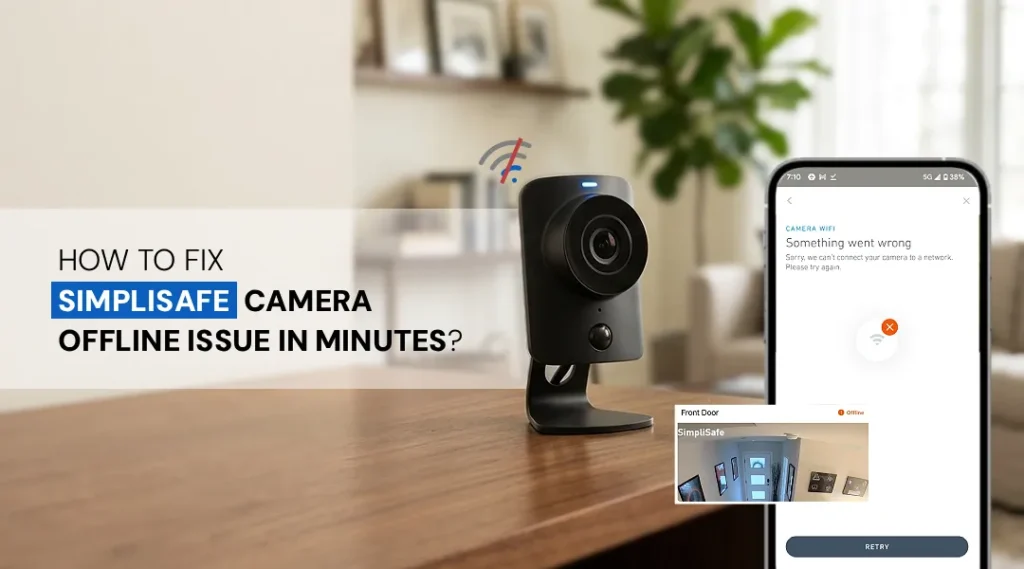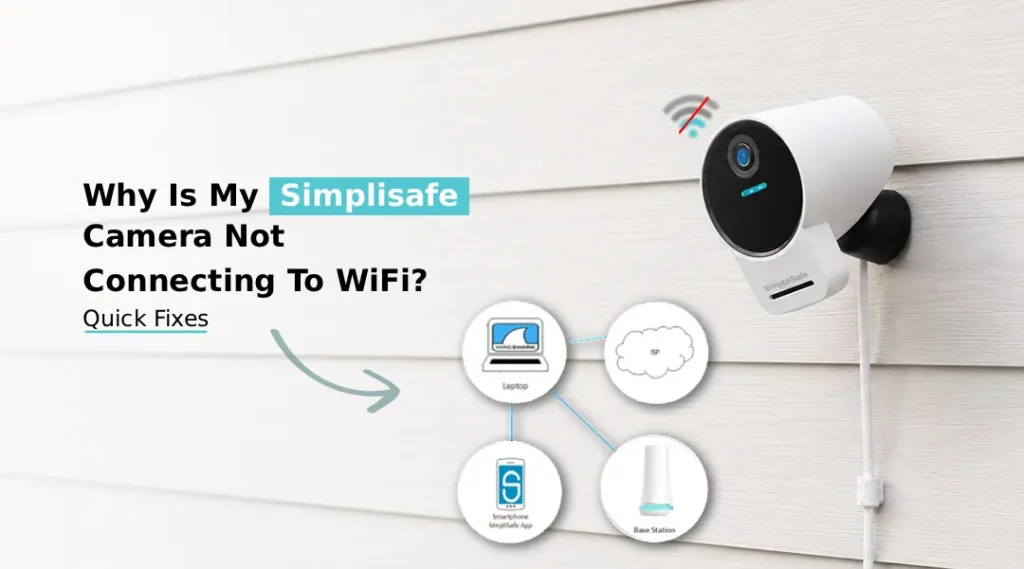
If your SimpliSafe Camera isn’t connecting to WiFi, restart your router and camera, ensure you’re on a stable 2.4GHz network, check your WiFi password, move the camera closer to your router, and update your SimpliSafe app. If this doesn’t work, reset the camera.
Is your SimpliSafe camera not connecting to WiFi? You’re not alone. This is one of the most common issues SimpliSafe users face, and the good news is that most of the time, it can be fixed in just a few minutes without any technical expertise.
In this guide, we’ll walk you through every possible reason your camera might be refusing to connect, and exactly how to fix it.
Why Won’t My SimpliSafe Camera Connect to WiFi?
Before jumping into fixes, it helps to understand what’s likely causing the problem. When your SimpliSafe camera won’t connect to WiFi, the root cause usually falls into one of these categories:
- Your router is broadcasting on a 5GHz band (SimpliSafe cameras only support 2.4GHz)
- The camera is too far from the router
- Your WiFi password was recently changed
- A temporary firmware or app glitch
- The camera needs a reset
Let’s go through each fix step by step.
Fix 1: Check Your WiFi Band (Most Common Cause)
This is the number one reason a SimpliSafe indoor camera not connecting to WiFi issue occurs, and it’s often overlooked.
SimpliSafe cameras are designed to work exclusively on 2.4GHz WiFi networks. Most modern routers broadcast both 2.4GHz and 5GHz bands, sometimes under the same network name. If your phone automatically connected to the 5GHz band during setup, the camera simply won’t follow, it’s not compatible.
How to fix it:
- Log into your router’s admin panel (usually at 192.168.1.1 or 192.168.0.1)
- Separate your 2.4GHz and 5GHz networks by giving them different names (SSIDs), e.g., “HomeWiFi_2.4” and “HomeWiFi_5G”
- Reconnect your SimpliSafe camera specifically to the 2.4GHz network
Once you do this, most connection issues resolve immediately.
Fix 2: Restart Your Router and Camera
Sometimes the simplest fix is the most effective. A quick restart clears temporary glitches affecting your network stack and the camera’s internal memory.
Steps:
- Unplug your router from the power outlet
- Wait 30 seconds
- Plug it back in and wait for it to fully reconnect (usually 60–90 seconds)
- Power cycle your SimpliSafe camera by unplugging it, waiting 10 seconds, and plugging it back in
- Open the SimpliSafe app and check if the camera reconnects automatically
This quick reboot sequence fixes a surprising number of SimpliSafe device offline errors.
Fix 3: Move the Camera Closer to the Router
WiFi signal strength plays a huge role in camera connectivity. Walls, floors, appliances, and interference from neighboring networks can all weaken your signal significantly.
If you find your simplisafe camera not connecting to wifi, see if your camera is more than 30-40 feet from the router, or if there are multiple walls between them, it may not be receiving a strong enough signal to maintain a stable connection.
What to do:
- Temporarily place the camera within 10 feet of the router to test if it connects
- If it does, your signal is the problem, not the camera itself
- Consider adding a WiFi extender or mesh node closer to where the camera is installed
- Avoid placing the camera near microwaves, cordless phones, or baby monitors, all of which interfere with the 2.4GHz band
Fix 4: Re-enter Your WiFi Password
If you recently changed your WiFi password or switched internet providers, your camera is still trying to connect using the old credentials. This will cause it to appear offline or fail to connect entirely.
How to connect SimpliSafe camera to WiFi again after a password change:
- Open the SimpliSafe app on your phone
- Go to Camera Settings
- Select your camera and choose WiFi Settings or Change Network
- Enter your updated WiFi password
- Wait for the camera to reconnect
This process typically takes under two minutes and is the correct way to connect SimpliSafe camera to WiFi after any network changes.
Fix 5: Update the SimpliSafe App and Camera Firmware
Outdated software is a less obvious but very real cause of simplisafe camera not connecting to wifi. SimpliSafe regularly pushes firmware and SimpliSafe login app updates that fix bugs, improve connectivity, and patch compatibility issues.
Steps:
- Open the App Store (iOS) or Google Play Store (Android)
- Search for the SimpliSafe app and tap Update if available
- Once updated, open the app, firmware updates for your camera are typically pushed automatically
- If prompted to update the camera firmware, allow it to complete before testing the connection
Always keep both the app and camera firmware up to date to avoid recurring connectivity issues.
Fix 6: Check for Network Congestion
If you have many devices connected to your WiFi network, smart TVs, phones, tablets, smart home devices, your router may simply be overloaded. This is especially common with older routers that struggle to handle more than 15–20 devices simultaneously.
What to do:
- Disconnect a few devices temporarily and see if the camera connects
- Log into your router settings and check how many devices are active
- Consider upgrading to a router with better multi-device handling (WiFi 5 or WiFi 6 routers manage this much better)
- Assign a static IP address to your SimpliSafe camera through the router’s DHCP settings to ensure it always gets a stable connection
Fix 7: Reset Your SimpliSafe Camera
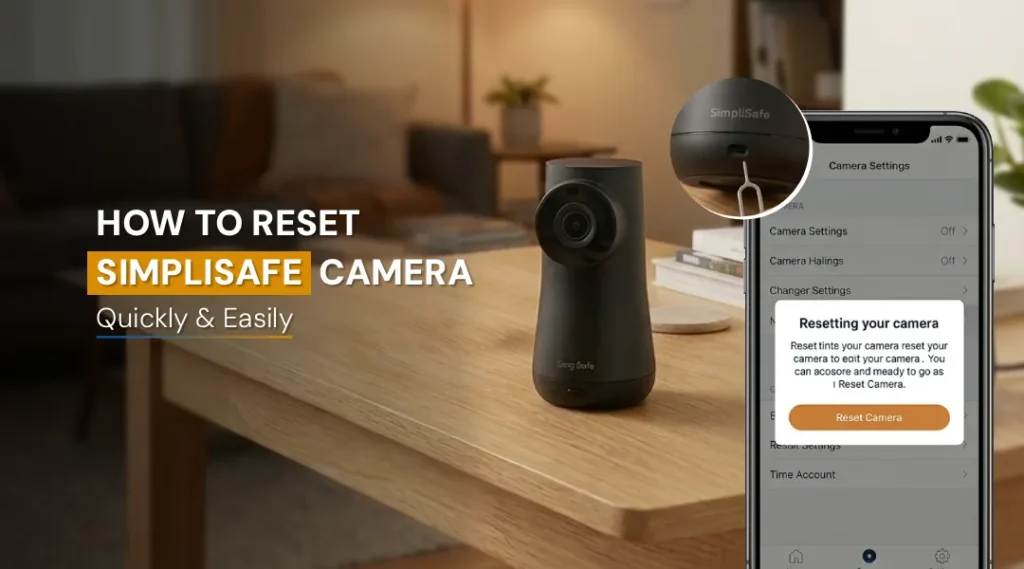
If none of the above solutions have worked, it’s time to do a full reset SimpliSafe camera procedure. This wipes the camera’s saved network settings and lets you start the setup process fresh.
How to reset your SimpliSafe camera:
- Locate the reset button on the back or bottom of your camera (a small pinhole button)
- Use a paperclip or SIM ejector tool to press and hold the reset button for 10–15 seconds
- The camera’s LED light will flash or change color, indicating a successful reset
- Open the SimpliSafe app and go through the Add Device process to set up the camera as new
- Make sure to select your 2.4GHz network during setup
After a reset and fresh setup, your camera should connect without issues.
Fix 8: Check SimpliSafe Server Status
Occasionally, the issue isn’t on your end at all. SimpliSafe’s servers may be experiencing downtime or maintenance, which can prevent cameras from connecting or showing as online in the app.
How to check:
- Visit SimpliSafe’s official status page or their social media channels for any announced outages
- Search Twitter/X for “SimpliSafe down” to see if other users are reporting the same issue
- Wait 30–60 minutes and try again if a server outage is confirmed
Server-side issues are typically resolved quickly by SimpliSafe’s technical team.
Still Not Working? Contact SimpliSafe Support
If you’ve tried every fix on this list and your SimpliSafe camera won’t connect to WiFi, it’s worth reaching out to SimpliSafe’s customer support directly. There may be a hardware defect with the camera itself, or your account may have a configuration issue that needs to be resolved on the backend.
SimpliSafe offers support via phone, live chat, and email. Have your account details and camera model number ready before you reach out, it speeds up the process considerably.
FAQs
Open the SimpliSafe app, go to Camera Settings, select your camera, and choose the WiFi or Network Settings option. From there, you can select your WiFi network and re-enter your password. Make sure you’re connecting to a 2.4GHz network, as SimpliSafe cameras don’t support 5GHz.
SimpliSafe cameras support only 2.4GHz WiFi networks. They are not compatible with 5GHz bands. Your router’s security protocol should be set to WPA2 for the best compatibility.
Start by moving the camera closer to your router or eliminating physical obstructions like thick walls or large appliances between them. Adding a WiFi extender or switching to a mesh WiFi system can dramatically improve signal coverage.
Yes. Use a paperclip to press and hold the small reset button on the camera for 10-15 seconds until the LED indicator flashes. This clears all saved network configurations.
Final Thoughts
A SimpliSafe camera not connecting to WiFi is frustrating, but it’s almost always fixable. The majority of cases come down to just three things: wrong WiFi band (5GHz instead of 2.4GHz), weak signal strength, or outdated credentials after a password change. Work through the fixes in order, starting with the band check, and you’ll most likely have your camera back online within minutes.
If the problem keeps coming back, it may be worth evaluating your home network setup, a stronger router or a mesh system can make a significant difference in the long-term reliability of all your smart home devices, not just your SimpliSafe cameras.