If the SimpliSafe app is not working, try updating the app, restarting your phone, checking your internet connection, clearing the app cache, and reinstalling the app. Our quick troubleshooting guide helps resolve common SimpliSafe app issues and restore access quickly.
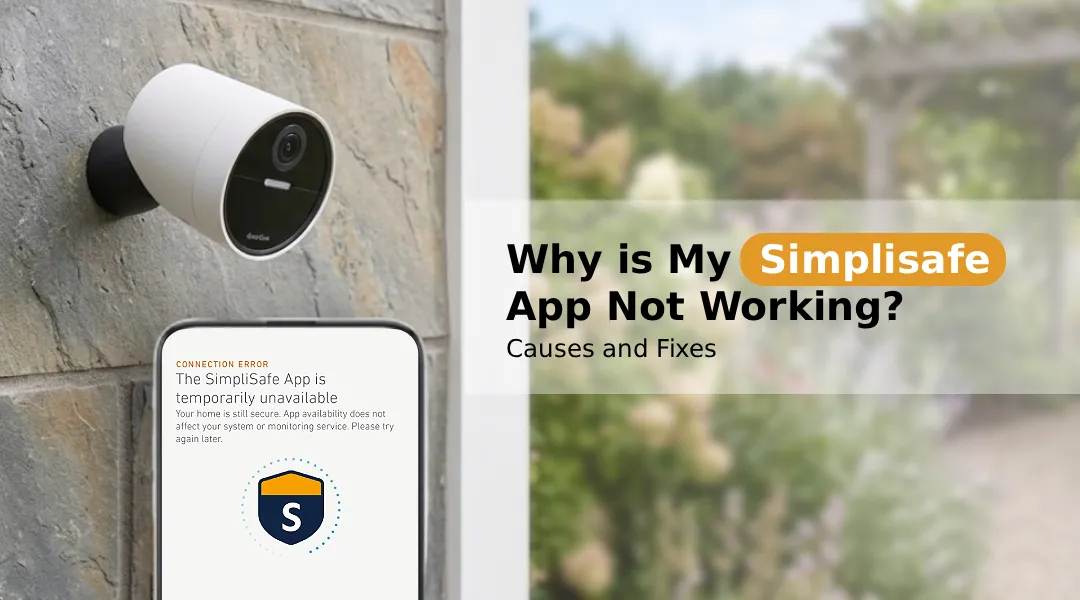
SimpliSafe app not working? It can be frustrating when you experience problems while using your SimpliSafe app. Fortunately, we can help solve this problem for you. There are several reasons why you may have problems with the SimpliSafe app; here is what you should know.
Common Reasons the SimpliSafe App Stops Working
To fix the problem effectively, it is necessary to get familiar with its causes. The most common ones include the following:
- Internet connection instability or problems
- Old app version or Simplisafe firmware update required
- Simplisafe server downtime
- Cache or data corruption
- Account or SimpliSafe authentication issues
- Simplisafe app notifications not working
Guaranteed Fixes for App Not Working Issue
Fix 1: Check Your Internet Connection
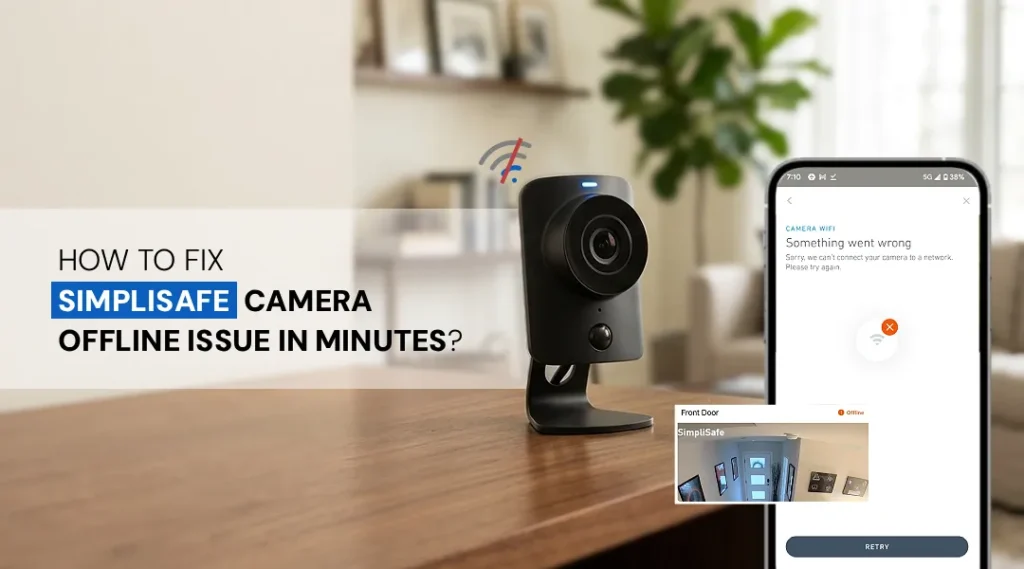
The SimpliSafe application is fully dependent upon the stability of the internet connection. In case your Wi-Fi or cell phone data are not working fine, your application will lag, crash, or show the device as offline.
What can be done?
- Try using the Wi-Fi and mobile data one after another.
- Unplug your router for 30 seconds.
- Get close to your router if the signal strength is poor.
- Check your internet connection by launching another application or website.
If everything works properly except for the SimpliSafe app, you know where the problem is.
Fix 2: Force Close and Restart the App
It may be a very straightforward fix. Sometimes, applications freeze because of their corrupted state, especially when they’ve been updated or left running in the background for too long.
- iPhone – swipe up from the bottom of the screen and swipe SimpliSafe off the screen.
- Android – open Recent Apps, end SimpliSafe, or go to Settings > Applications > SimpliSafe > Force Stop.
Try the app again and see if it is functioning properly.
Fix 3: Update the App
The use of the old SimpliSafe application is one of the leading causes of problems, including crashes and SimpliSafe app notifications not working. Bugs are constantly being fixed and updated.
- Launch App Store (for iPhone) / Google Play Store (for Android).
- Type “SimpliSafe” into the search bar, and select “Update” in case an update is available.
- Once the update is installed, reboot your phone and open the app again.
Additionally, see if there’s a firmware update needed on your base station or cameras through Simplisafe. This update should be automatic; however, you can check inside the app in Device Settings.
Fix 4: Fix SimpliSafe App Not Working on iPhone
But when it comes to the problem of the SimpliSafe app not working on your iPhone, here is what you should do to fix this:
- Check iOS compatibility – Make sure that you have an iPhone that runs on iOS 14 and above since older versions will not be able to run the updated version of this application.
- Reset Network Settings – Open Settings > General > Transfer or Reset iPhone > Reset > Reset Network Settings.
- Enable Notifications – Open Settings > Notifications > SimpliSafe and ensure that “Allow Notifications” is turned ON.
- App Reinstallation – Uninstall the app first, reset your device, and then install it again using the App Store.
- Background App Refresh – Access Settings > General > Background App Refresh to turn this on for SimpliSafe.
Fix 5: Clear App Cache (Android)
On Android, an overloaded or damaged cache may lead to problems like simplisafe app not loading where the Simplisafe app either fails to open or freezes upon start-up.
Cache clearing steps:
- Head to Settings > Apps > SimpliSafe.
- Select Storage.
- Choose Clear Cache, followed by Clear Data.
- Restart the app and sign in again.
No information is deleted from your account, just reset from the app’s end.
Fix 6: Resolve Simplisafe Login Problems
Failure to log in could be because of an issue in either the login details or the session token.
- Make sure that your credentials are right. Use “forgot my password” if required.
- If a VPN is active, then deactivate it as this could be causing problems for the login process.
- Login to the website using your browser through simplisafe.com
- Two-factor authentication can only be enabled if you are able to receive the verification code.
In the event that your Simplisafe log-in is not working even after providing the right credentials, you should contact SimpliSafe customer service immediately.
Fix 7: Reset the SimpliSafe Camera
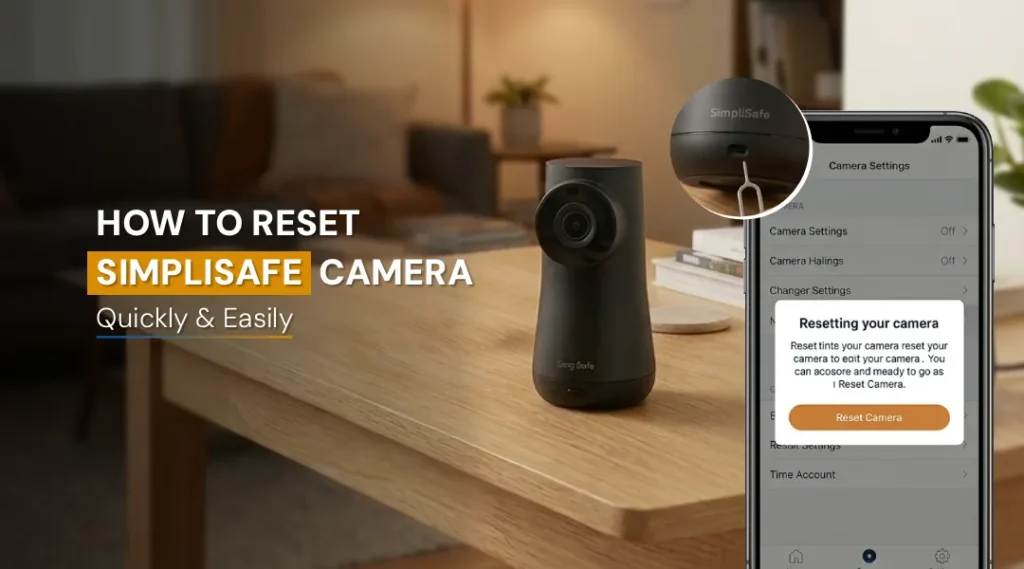
In the event that you are connected but your camera isn’t working, you might have to perform a hard reset of SimpliSafe camera.
- Steps to reset SimpliSafe camera
- Find the reset button in the rear/back or bottom section of the camera unit.
- Continue holding it for about 10 to 15 seconds until you see the LED light up.
- Add the camera back using the SimpliSafe mobile application via Cameras → Add Device.
Camera reset becomes more effective after updating your SimpliSafe firmware because sometimes the configuration may require to be updated.
Fix 8: Check for SimpliSafe Server Outages
Sometimes, the problem might have nothing to do with you at all. Sometimes the servers of SimpliSafe have downtimes that affect the entire application throughout the world.
- Navigate over to downdetector.com and type in “SimpliSafe” to see what other people have reported about this problem.
- Follow the Twitter/X page of SimpliSafe for service information.
- If a downtime has been reported, then just wait it out; there’s nothing else to do.
Fix 9: Reinstall the App
If all these solutions fail, however, a complete reinstall usually takes care of the problem.
- Firstly, uninstall Simplisafe app from your phone.
- Secondly, restart your phone.
- Thirdly, reinstall Simplisafe from the app store or google play.
- Finally, log back in and customize notifications settings.
Frequently Asked Questions
It normally indicates that there is a problem with either the internet connection or power supply at the base station. Make sure the base station is powered on, that you have internet access and reboot both the router and base station. If the problem still exists, then make sure you have the latest firmware for Simplisafe.
There are some problems that might lead to your SimpliSafe app notifications not functioning, such as notification permissions being turned off, the “Do Not Disturb” function activated, and a version problem with the app. If you use an iPhone, please check the settings under Settings > Notifications > SimpliSafe.
Tap on Settings > Apps > SimpliSafe > Storage > Clear Cache. If you wish to clear all data associated with SimpliSafe, then you can also press on “Clear Data.” This solution works best whenever your SimpliSafe app fails to load.
SimpliSafe app is designed for users with devices having an iOS version of 14 or higher and for devices that have an Android version of 8.0 or greater. In case you have an outdated OS, your device may either crash or display a blank screen or fail to login.
In case you have done everything from the steps listed above but the application is not working, then you can contact SimpliSafe customer service by calling toll-free 888-957-4675 or through live chat on the website.
A black screen is normally brought about by corruption in the cache, problems updating the app, or the app’s incompatibility with your phone model. Close down the app completely, clean the cache for Android phones, or uninstall and reinstall the app on iPhones. Make sure your OS is updated as well.
Final Thoughts
Regardless of whether it is a simple connection issue or an update on the SimpliSafe software, there is always a way out when you face SimpliSafe app not working difficulties using app. Start with trying all the above tips in order of simplicity. And if nothing helps, do not hesitate to contact the technical support team at Simplisafe; they will be more than ready to assist you.