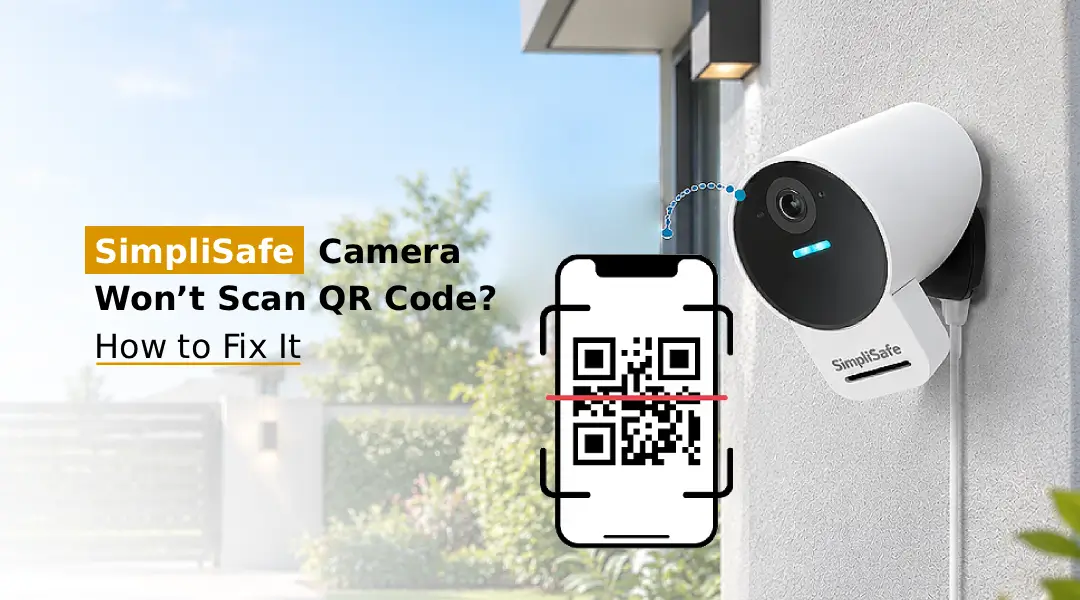
If your SimpliSafe camera won’t scan QR code, it could be due to a number of causes including low brightness on the phone screen, improper scanning distance, a dirty lens, screen reflection, or an unstable setup. Adjust the brightness to a higher setting, ensure that the lens is clean and try moving the QR code. Then, reset the setup. Ensure that the camera is switched on and connected to the correct Wi-Fi.
SimpliSafe cameras require scanning of a QR code during the initial setup procedure. This allows your device to be recognised and connected to the mobile app. However, if your Simplisafe camera not scanning QR code shown on your smartphone, you will not be able to complete the installation. This can occur due to low lighting, improper positioning, outdated app software, or incorrect camera settings. You shouldn’t need to replace your SimpliSafe camera if it does not scan QR code. There are a few simple fixes which can be performed to get your camera to scan QR code again.
Why Won’t My SimpliSafe Camera Scan the QR Code?
There may be a few reasons why your SimpliSafe camera is not recognising the QR code.
- Screen is too dim: The screen on your phone may be set too low to be read by the camera.
- Too close or far away: You may be holding your phone too close or far away from the camera whilst trying to scan.
- Lens is dirty: If there is dust, fingerprints, or smudges on your camera lens, it will get in the way of scanning a QR code.
- Reflections on screen: If there are reflections on your phone screen from nearby lights, this can cause an issue.
- QR code is damaged: If your QR code is distorted or not showing fully, you will have issues scanning.
- App is out of date or faulty. If your SimpliSafe app is out of date or faulty, this can lead to issues whilst setting up.
Poor Wi-Fi: If you are having issues with your wireless internet, your camera will not be able to set up.
Note: If you are having issues with your SimpliSafe doorbell not reading QR code, you may be experiencing similar issues with your screen setup, lighting, and lens.
How to Fix SimpliSafe Camera Won’t Scan QR Code?
If you are having issues with your SimpliSafe camera won’t scan QR code, do the following:
- Increase the brightness of the screen on your smartphone to between 80-100% so that it can scan the QR code easily
- Move your phone to about 6-12 inches away from the camera and gently move the phone around.
- Use a soft microfibre cloth to wipe the lens clean.
- Ensure that your phone is not causing any glare on the screen by moving away from any direct sunlight and changing the angle of your phone.
- Close and open the SimpliSafe app and go to the SimpliSafe login to log in. Generate a new QR code.
- Check that your wi-fi connection is stable.
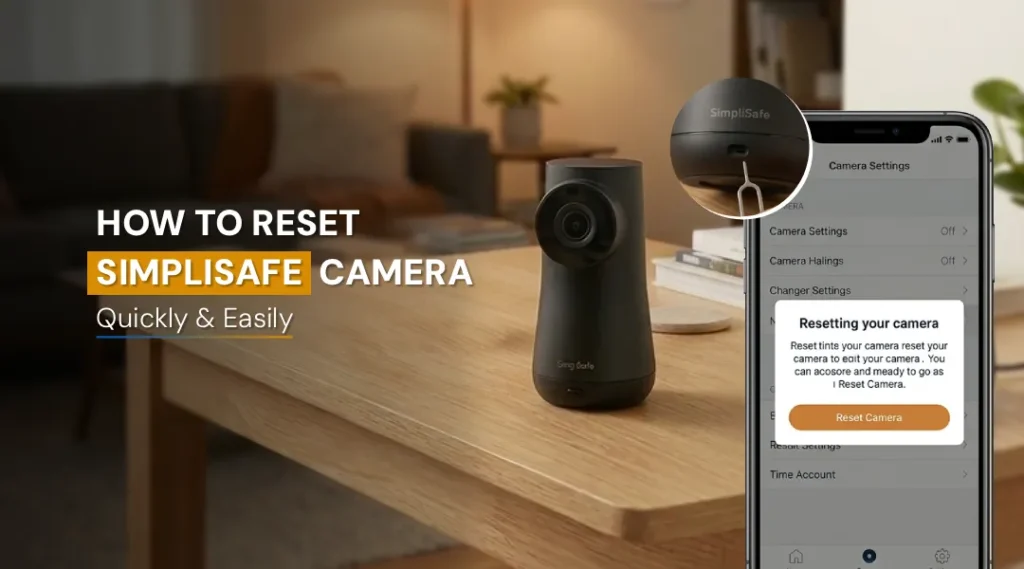
- If this doesn’t work, restart/reset your camera (instructions will differ depending on the model) and attempt to scan again.
What to Do If SimpliSafe Camera Still Won’t Scan the QR Code?
If your SimpliSafe camera still not scanning QR code after troubleshooting, then try the following strategy:
- Updating your application: Ensure you have the most up-to-date version of the SimpliSafe app installed.
- Try using a different smartphone: Try displaying the QR code on a different compatible smartphone.
- Recreate QR Code: Go back through your setup to reset SimpliSafe camera. and create a new QR Code.
- Ensure your camera is compatible: Check that your camera model is compatible with the setup method you’re using.
- Contact SimpliSafe Support: If your camera still can’t scan the code, contact customer support. They will be able to provide specific troubleshooting based on your camera model. They may also need to inspect the hardware.
Key point: Don’t continually reset your camera without checking the manufacturer’s instructions.
Common Challenges and Quick Solutions
- QR Code not recognized: Ensure your phone is set to maximum brightness (80-100%).
- Camera out of focus: Ensure that you are at the correct distance and angle.
- Screen glare: Ensure that you are in a dark area and reduce any screen glare.
- Dirty camera lens: Gently wipe the lens with a microfibre cloth.
- App not responding: Restart the App and ensure it is up to date.
- QR Code looks distorted: Create a new QR code.
- Camera not connecting: Ensure the camera is compatible with your Wi-Fi connection and your network is stable.
- Camera not connecting: Ensure that you restart your Camera, and re-set up.
- Still not working: Follow the specific reset instructions for your model, or contact SimpliSafe.
FAQs:
What brightness should I use for SimpliSafe QR Code scanning?
Set your phone to a brightness of 80-100%; this will make it easier for the camera to scan the QR code. Also turn off auto brightness.
How far should my phone be from the SimpliSafe camera?
Try holding your phone about 6-12 inches away from the camera lens. Move slowly until the camera recognises the QR code. Depending on the model, it will suggest different distances.
Can I print the SimpliSafe QR code?
If your camera setup instructions allow you to do so, you can try printing off the QR code. Make sure you print the QR code clearly on white paper. Follow the setup instructions provided for your specific model. You need to make sure the QR code isn’t warped or cut off.
Will resetting my camera fix the QR code problem?
This may help if there is an issue with the software or setup, but if there is a physical issue with the camera, like a broken lens or screen visibility, then this will not help. Try some basic troubleshooting before doing a factory reset.
Can I set up my SimpliSafe camera without scanning the QR code?
Depending on your camera model, there may be different ways to set up your camera. Some models may have alternate setup options, but others may require you to scan the QR code. Refer to your camera’s official setup instructions.
Does Wi-Fi affect SimpliSafe camera QR code scanning?
Generally no. However, if you are on a weak or incompatible network, the camera may not finish setting up.
Final thoughts
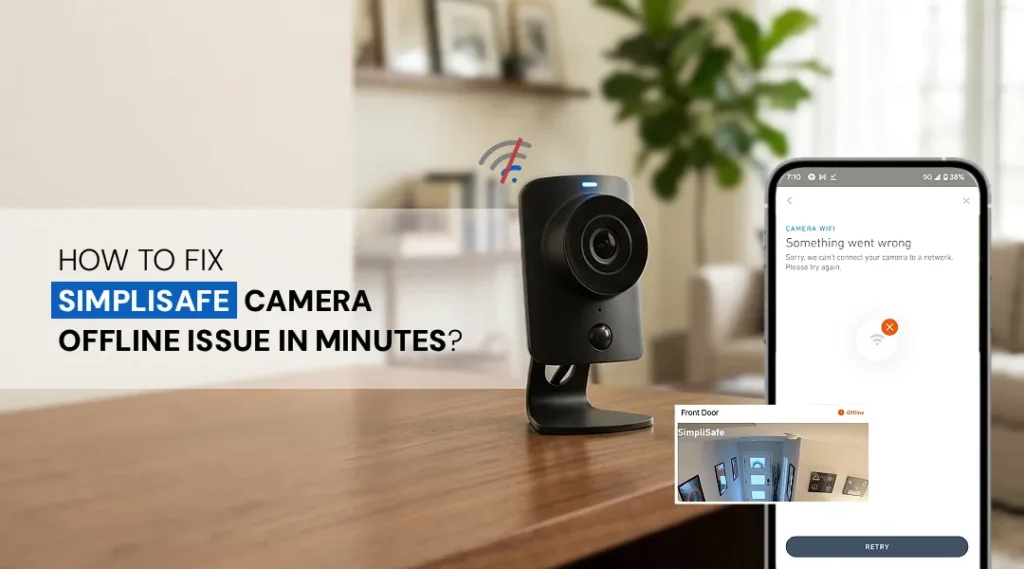
If your SimpliSafe camera won’t scan QR code, it is often because the screen brightness is too low on your phone, you’re scanning at an incorrect distance, there is something blocking the lens, or there is an issue with the app. To overcome this, you can increase the brightness of your phone, adjust how far you are scanning from, and clean your camera lens. You can restart the app, ensure it is compatible with your Wi-Fi network, and follow specific steps for your camera model to reset. This should help you to successfully scan your QR code. In case, SimpliSafe camera says offline, then go to the official website and recheck the manual to overcome this problem.