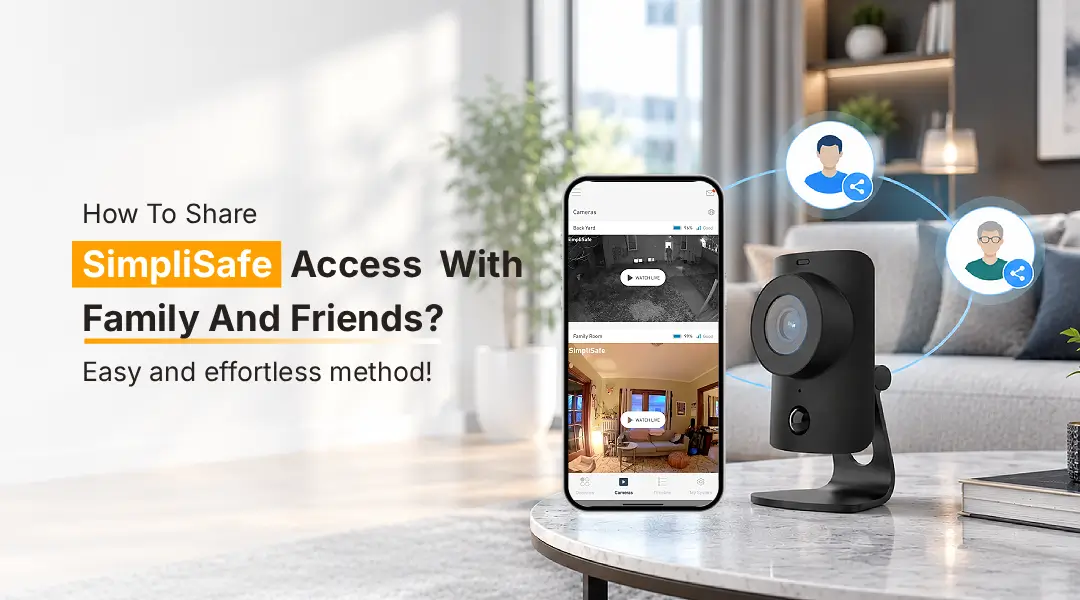
To share SimpliSafe access with family, open the SimpliSafe app, go to Settings, then users tap “Add User,” enter their name and phone number, choose a PIN and set their permission level as Master or Standard. They will receive a text invite to download the app and link their account to your system for full or limited control. Available features may depend on your subscription plan and system model.
Giving family members the opportunity to check up on their loved ones is an important part of any relationship. This extends to home security, where allowing family members to check up on the house can be reassuring for both parties. Similarly, maybe you’d like your wife to arm your SimpliSafe system or have your father watch over his own house while you travel for work. No matter your reason for considering SimpliSafe sharing options, you’re going to want to know how to review permissions, get the necessary app set up, troubleshoot common problems, and more.
How to share SimpliSafe access?
To SimpliSafe share access safely, there are several steps you should take to check if your account and subscription plan allow for separate users or access. These steps should be taken:
- Open your SimpliSafe application, go to the application on your phone and log in to the account associated with the system.
- Access account or user settings; depending on your version of the app, there may be specific settings for users or sharing.
- Furthermore, look at the permissions available to your account to see if there is an option to share your plan or invite another user.
- In addition, you may have to ask the person you want to give access to provide some information or even go through verification steps.
- Moreover, check that the person you invited only has the permissions that you wanted them to have.
- Finally, if you do not have an option to invite someone or share your account, contact customer service to find out what options are available to you.
Note: It is important to note that not all subscriptions have the same sharing options available, so make sure with your customer service representative to see what features are available for your system.
Sharing Option SimpliSafe With Family And Friends
SimpliSafe offers an Additional User Access feature which allows qualifying SimpliSafe residential monitoring customers to provide an alternative user with access to their alarm without having to share their password.
Step 1: Open My System
The user should open the SimpliSafe mobile application on their smartphone or tablet, log in to their account using their owner credentials, and tap on My System located at the bottom of the screen.
Step 2: Select System Access and open the SimpliSafe account login to sign in
The user should navigate to System Access and sign in. After that, tap on Add User to continue with adding a new family member or friend to their account.
Step 3: Enter the user’s personal information
The user should fill in the new account holder’s personal information, including their full name and email address, and ensure that there are no typos or additional spaces at the beginning or end of the email address.
Step 4: Send the invitation
The user should tap on Send Invitation and wait for the confirmation message. The person being invited should accept the request and set up their account using the same email address provided by the account owner.
Key point: The request to add a user expires after seven (7) days, so it is important to remind the person if the link has expired; otherwise, the account owner can send another invitation from System Access.
How to share SimpliSafe app with family?
To set up a shared experience for a SimpliSafe shared account, make sure to add each family member as an independent user instead of sharing the primary account credentials.
When invited to join, the user will be able to utilise the following features in the SimpliSafe mobile application:
- Remote arming and disarming of the system
- The ability to view the status of the system, receive and manage notifications, and watch active camera feeds that are supported by their plan.
- Access to device and system settings that are not restricted by the owning account.
- View, download, and delete recordings if permitted by the account owner
Helpful tip: However, the additional account user would not be authorised to change or view the billing information of the main account or delete the owner. Some permissions might be limited in the additional SimpliSafe account. You can contact SimpliSafe Support for more information.
What should I do if shared access is not working?
If any member of your family cannot open the system they were invited to, try using this guide.
- The invitation was not received: Check the e-mail address and make sure there is not another one in case it was in the Spam or Junk Folder.
- The invitation has expired: Open up System Access and resend the invitation.
- The log-in was unsuccessful: Make sure that the person who was invited used the same e-mail address that they received the invitation with.
- The Add User option is not available: Make sure that the location that you are trying to add the user to has an active monitoring plan that qualifies for an extra user, and if it does not, apply for one.
- The invitation is not working: Try sending the invitation again at a later time in case there was a system error, and if it still is not working, contact SimpliSafe’s support team
How to Review and Remove Access When Needed?
Reviewing access is an important step in ensuring home security. Cancel the accounts of those who no longer need access to the system, including ex-residents, temporary guests, and friends who have finished helping you while you were away.
To delete a user:
- Launch the SimpliSafe app setup option and go to My System
- Then, tap on System Access.
- Next, choose the person you want to remove.
- Now, tap on the Remove User option.
- Finally, confirm that you want to delete the account.
Note: The person will no longer have access to your SimpliSafe account via the mobile application. If you have multiple SimpliSafe accounts, make sure to delete the user from each one since permissions are specific to every location.
Additional troubleshooting tips
- Check login account: Make sure that the user who has been invited to join has logged into their own account, not a random one.
- Update the app: Try updating the application to its latest version and restart it.
- Check internet: Ensure that your device is not offline; hence, you should have an active WiFi or cellular data connection.
- 4. Update SimpliSafe firmware: If your system faces a problem due to a different device, you should look for the manufacturer’s guidelines to update SimpliSafe’s firmware, and if available, update it right away. However, keep in mind that an update cannot replace an invitation.
- Contact support: If the above methods fail, contact customer support for further assistance.
FAQs:
Do family members need the SimpliSafe app?
Family members who want to use their smartphones to access your system should download the SimpliSafe app and accept your invitation, which should be sent to their email. The application works on iOS and Android smartphones.
Can my wife share my SimpliSafe account?
Yes, you can add another person as an administrator if your account has a sufficient subscription level. Your wife will be able to use her email to get your invitation and simplify the process of managing the system independently without using your login data.
Does SimpliSafe share data with police?
SimpliSafe Privacy Policy and applicable laws determine whether or not the company shares customer data. Therefore, trusting that SimpliSafe does not share private information with a third party, except for the police, is wrong. The information that the company possesses about customers can be shared under specific privacy policies and regulations.
How can I remove someone from my SimpliSafe account?
To remove a user from the system, open the SimpliSafe mobile application and select My System. From the System Access menu, choose the person who needs to be deleted and click the Remove User button.
Should I share my SimpliSafe password with friends?
Under no circumstances should a user share their password with another person. A better option to grant friends and family access to an account is to use the additional user feature. If the main account administrator shares their password, they will not be able to manage who has access to their system.
Final Thoughts
Learning how to share SimpliSafe access between family and friends can be helpful in order to give them access to your house without having to provide them with the password. In addition to this, you will also want to make sure that you are using the official additional-user feature in order to share SimpliSafe. Moreover, you must invite only those people that you trust. Finally, you should also make sure to accept the invitations as well as disable any additional users if necessary.