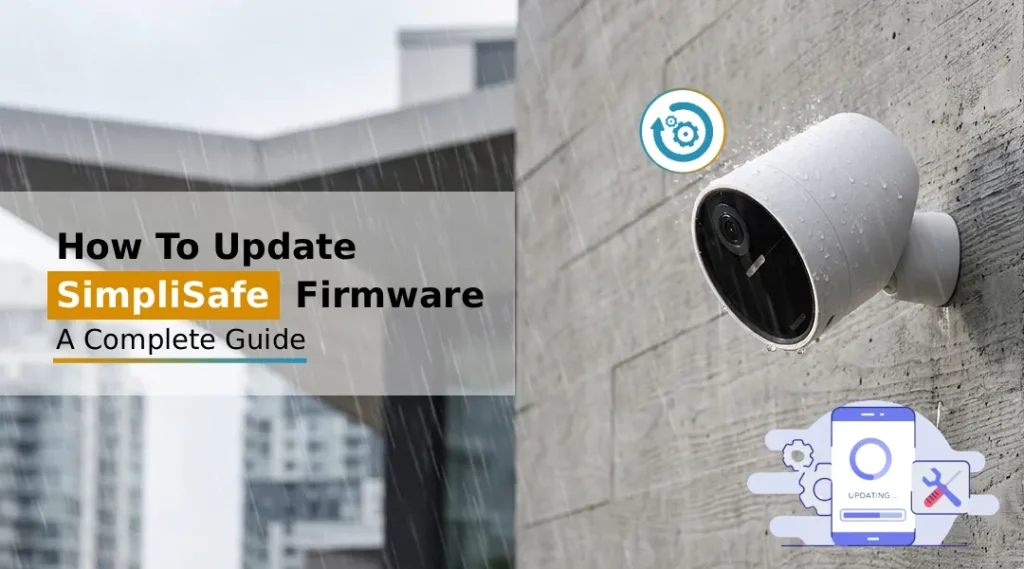
To update SimpliSafe firmware, ensure your system is connected to Wi-Fi and powered on. The system performs automatic updates as its standard operation. Open the SimpliSafe app, go to Settings > System Updates, and check status. If an update is available, it will download and install automatically without manual intervention.
If you own a SimpliSafe home security system, keeping your firmware up to date is one of the most important things you can do to ensure your home stays protected. A SimpliSafe firmware update patches security vulnerabilities, improves device performance, and unlocks new features, all without replacing any hardware. This guide walks you through everything you need to know about how to update SimpliSafe firmware across every device in your system.
What is SimpliSafe Firmware Update and Why Does It Matter?
Firmware is the low-level software embedded in your security hardware, your base station, cameras, doorbell, and sensors. Unlike regular apps, firmware controls how the hardware itself operates. Outdated firmware can leave your system exposed to bugs, connectivity issues, and in worst cases, security exploits.
SimpliSafe regularly pushes firmware improvements to enhance motion detection accuracy, fix communication errors between devices, and maintain compatibility with the SimpliSafe app. Staying current ensures your system functions as reliably as the day you installed it.
How to Update SimpliSafe Firmware Step-by-Step?
Step 1- Log In to Your SimpliSafe Account
Start by visiting www.simplisafe.com login page and signing in with your registered email and password. Once inside the dashboard, you’ll have access to your system’s settings, device list, and update status. This is the central hub for managing all firmware-related activity.
Tip: Use the same credentials you registered during your initial setup. If you’ve forgotten your password, use the “Forgot Password” link on the login page.
Step 2- Open the SimpliSafe Mobile App
Most firmware updates are pushed and managed through the SimpliSafe app (available on iOS and Android). Open the app and ensure it is updated to the latest version from your device’s app store. An outdated app can sometimes prevent firmware delivery.
Once inside the app:
- Tap the menu icon (☰) in the top left corner
- Select My System
- Tap Device Settings
Here you’ll see a full list of all connected devices, base station, cameras, doorbell, and sensors.
Step 3- How to Update Firmware on SimpliSafe Base Station
The base station is the brain of your security system. To ensure it receives its update:
- Make sure the base station is plugged in and connected to the internet via Wi-Fi
- Keep the system in Home or Away mode (not disarmed), this is when SimpliSafe typically pushes updates
- Leave the system undisturbed for 15-30 minutes
- A blue LED light will pulse slowly during the update Simplisafe firmware, do not unplug the unit during this time
- Once the update is complete, the LED will return to its normal state
If you don’t see any activity, go to Simplisafe setup Settings and then select Base Station and finally, Check for Updates within the app.
Step 4- SimpliSafe Camera Firmware Update
For a SimpliSafe camera firmware update, the process is largely automatic but here’s how to verify and trigger it:
- In the SimpliSafe app, go to My System and click on Cameras
- Select the camera you want to check
- Tap Camera Settings and select Firmware
- If an update is available, tap Update Now
- The camera will restart once the update completes (usually within 5–10 minutes)
Ensure the camera remains powered and within strong Wi-Fi range throughout this process.
Step 5- SimpliSafe Doorbell Firmware Update
The SimpliSafe doorbell firmware update follows a similar path:
- Open the SimpliSafe app and navigate to My System and then Doorbell
- Tap Doorbell Settings and then click on the Firmware Version
- If an update is pending, select Update Firmware
- Wait for the doorbell to complete the update; the doorbell light may flash during the process
- Once complete, test the doorbell by pressing the button to confirm it’s working properly
A strong Wi-Fi signal near your front door is crucial for a smooth doorbell firmware update. If the signal is weak, consider using a Wi-Fi extender before attempting the update.
Step 6- Verify All Devices Are Updated
After completing the steps above, return to My System and then select Device Settings in the SimpliSafe app and verify that all devices show the latest firmware version. You can cross-reference the current firmware version numbers with those listed on SimpliSafe’s official support page.
Best Practices for Keeping Firmware Updated
- Keep your system armed when not actively configuring it, updates are pushed during armed modes
- Maintain a stable Wi-Fi connection to ensure devices can receive and install updates without interruption
- Check the SimpliSafe app monthly to review device firmware status
- Enable app notifications so SimpliSafe can alert you when updates are available or completed
FAQs:
Yes, SimpliSafe cameras are designed to receive firmware updates automatically when connected to Wi-Fi and when the system is in Home or Away mode.
It is not recommended to actively use the camera during a firmware update. The camera may temporarily go offline or restart during the installation process.
If a SimpliSafe firmware update fails, start by rebooting your router and power-cycling the affected device. Then, open the SimpliSafe app and navigate to Device Settings to retry the update manually.
To check your firmware version, open the SimpliSafe app, go to My System and select Device Settings, and select the device you want to inspect. The current firmware version is listed under the Firmware or About section.
Firmware updates are critical for your home security system’s reliability and safety. They patch known vulnerabilities, fix bugs that could cause false alarms or missed alerts, improve device connectivity, and introduce performance enhancements.
No. Firmware updates on SimpliSafe systems do not reset or erase your device settings, sensor configurations, user PINs, or preferences. Your system will resume with all settings intact once the update is complete.
The Final Word
Keeping your SimpliSafe system firmware current is a straightforward but critical maintenance task. Whether you need to update SimpliSafe firmware, make a SimpliSafe doorbell firmware update, or are just figuring out how to update firmware on your SimpliSafe base station, the process is designed to be simple and largely automatic. Log in at www.simplisafe.com, keep your devices online and armed, and let SimpliSafe handle the rest; your home security will thank you for it.